Access the Route Brief
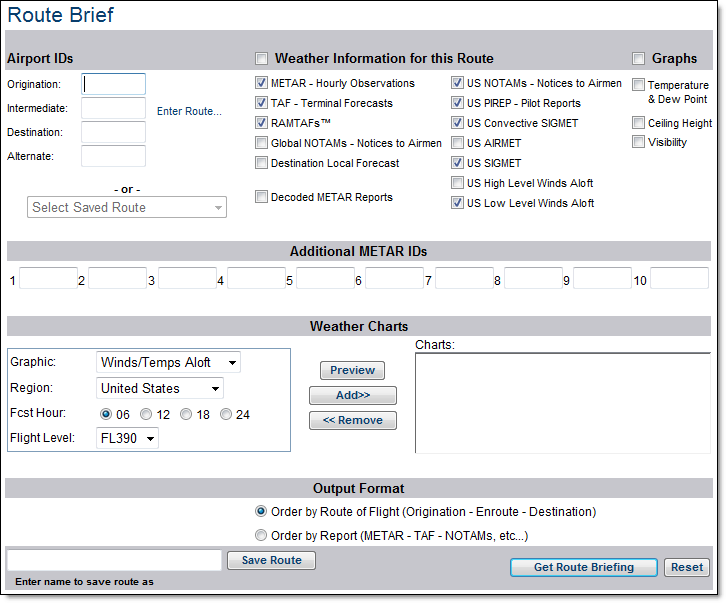
Enter the three or four-character airport code of your departure airport in the Origination text field.
If appropriate, enter the airport code of your layover or intermediate airport.
In the Destination text field, enter the airport code of your destination.
If appropriate, enter the airport code of your alternate airport.
Select the weather reports and graphs to view. Include all the reports by clicking Select All. Click Select All a second time to clear all the reports. Click Reset to remove all entries, only default reports will remain selected.
In the Select Weather Charts section, choose your Graphic, Region, Fcst Hour and Flight Level.
Click the Add button to include the chart in your route briefing.
Select the Output Format of choice.
Click the Get Route Briefing button to view the route brief.
Save the route and report preferences for future use by clicking the Save Route button. In the future just select the route from Select Saved Route and click Get Route Briefing to view the briefing.
Click the email option to send the Route Brief to pilots, dispatchers, etc.