Asset alerts are available in MxVision
AviationSentry Online
Alert thresholds can be set for both helicopters and helicopter bases to let you know when hazardous weather may affect your business.
|
|
The caution and warning alert thresholds are set by your Account Administrator. Alert parameters set for helicopter bases may vary from those set for helicopters.
The Account Administrator may select the criteria which, when met or
exceeded, will generate a color change in the Helicopter base icons within
the layered map.
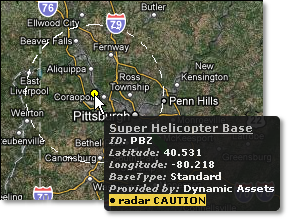
The radius has been superimposed on the above image for discussion purposes only.
Select the Settings Menu button.

Click the Asset Alert Thresholds Menu option.
Choose Helicopter Base as the Asset Type.
Set a radius around the bases. Should one of the selected
parameters occur within the set radius the affected helicopter base icon
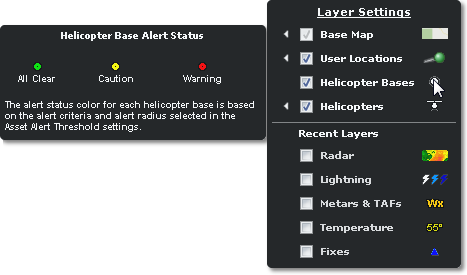
will change color as depicted in the legend.
Choose your Maximum Flight Duration. The base status
is updated when selected parameters of forecast events occur within this
time frame.
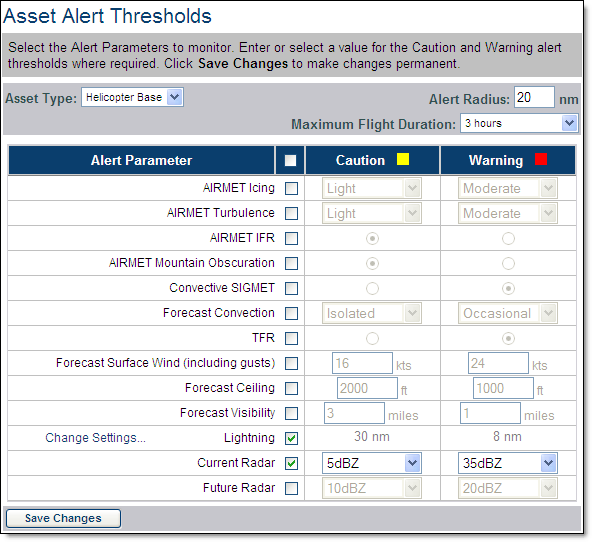
Check the alert parameters that you wish to enable. For some parameters you will need to enter a variable. All base assets included in your account will use the same thresholds.
Choose your warning/caution range and all clear time.
The range settings create a radius around the base which is used in lightning
detection. Lightning data is an optional purchase.
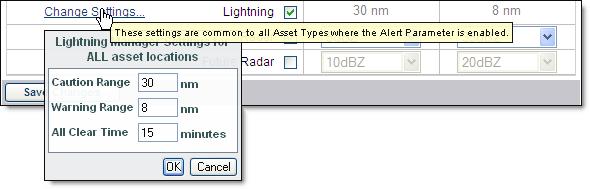
Lightning parameters set by your Account Administrator in this screen
will be set for all base assets included in the account. This setting
however, may vary from individual users' location alert criteria set in
the Alert Criteria screen.
Click Save Changes to save the parameter settings.
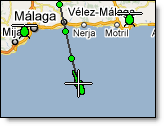
The Account Administrator selects the criteria which when met or exceeded will generate a color change in the helicopter icons and historical path markers within the layered map.
Select the Settings Menu button.
Click the Asset Alert Thresholds Menu option.
Choose Helicopter or Airplane as the Asset Type.
Set a radius. The radius is a set distance and is used
when the helicopter is stationary. If a parameter is met or exceeded within
this radius the helicopter/airplane icon, even though it is stationary,
will change color.
Note: Lightning alerts use a separate radius setting.

Set a corridor length in minutes; this means that although
the corridor will always be a 30
The alert corridor has been superimposed on the above image for discussion
purposes only.
Check the alert parameters that you wish to enable. For some parameters you will need to enter a variable. All helicopter or airplane assets included in your account will use the same thresholds.
Choose your warning/caution range and all clear time.
For safety purposes, a radius around the helicopter is always used in
lightning detection and is never limited to a corridor, even if the helicopter/airplane
is moving. Lightning data is an optional purchase.
Lightning parameters set by your Account Administrator in this screen will be set for all helicopter assets included in the account. This setting however, may vary from individual users' location alert criteria set in the Alert Criteria screen.
Click Save Changes to save the parameter settings.
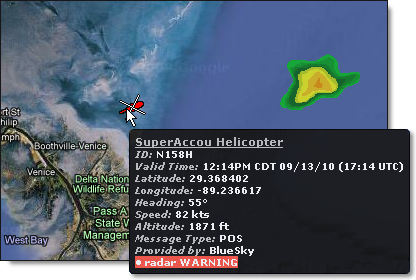
When the set threshold is met the icon viewed on the layered map will change color respectively. If more than one parameter has been met the icon status will represent the worst case scenario*. Hover over the icon to determine which parameters have been met.
|
Alert Parameter |
Status Change |
All Clear |
|
Observed |
AIRMETs and/or Convective SIGMETs have been issued. |
The status reverts to all clear when the expiration time located within the reports has been reached. |
|
Forecast |
Convection, TFR, Surface Wind/Gusts, Ceiling and/or Visibility thresholds have been met. |
The status reverts to all clear when the expiration time located within the reports has been reached. Or the set threshold is no longer reached within the forecast. |
|
Lightning |
Lightning has been detected within the selected warning/caution range of the asset. Lightning will always use a radius and is never limited to a corridor, even if the asset is moving. |
If no additional lightning is detected within the radius for the number of minutes selected in the All Clear Time, the status of the asset will return to all clear. |
|
Radar |
Chosen dBZ level has been reached and maintained within the radius/corridor for three consecutive Radar images (15 minutes). |
The status reverts to all clear when there has been no Radar activity within the defined radius/corridor for three consecutive Radar images. |
|
Future Radar |
Three Future Radar frames located at 15 minute intervals are reviewed each time the set of frames is updated (every five minutes). If the chosen dBZ parameter has been reached in one or more of these three images within the set radius/corridor, the status of the asset will change to the worst case scenario*. |
The status reverts to green when none of the three reviewed Future Radar images show activity within the defined radius/corridor. |
* Worst Case Scenario: If more than one parameter has been met, the most severe parameter determines which status color is shown. Therefore a red asset may represent multiple warning scenarios as well as caution scenarios. Hover over the icon to view a complete list of all parameters which have been met.
To view your assets select the Weather Viewer.
Select the asset layers from the Layers Menu.
The status' of your assets are apparent by their color.
|
Green |
All Clear |
None of your alert parameters have been met. |
|
Yellow |
Caution |
At least one of your caution parameters has been met. |
|
Red |
Warning |
At least one of your warning parameters has been met. |
|
White |
Aged Data |
Helicopters are shown in white when the data is no longer valid. The last status of the helicopter remains in the popup. Therefore a white helicopter may list a caution or warning but it will always be historical information. |
In Asset Preferences choose whether or not to view historical
path markers. Select a length of time to view (between 15 and 180 minutes).
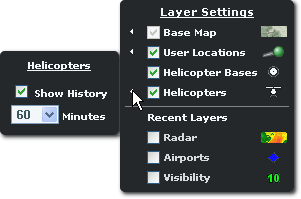
Note: A historical path marker will retain its assigned color.
Path markers remain visible until either the flight is terminated or the
time frame set in Asset Preferences has been met and the marker is removed.
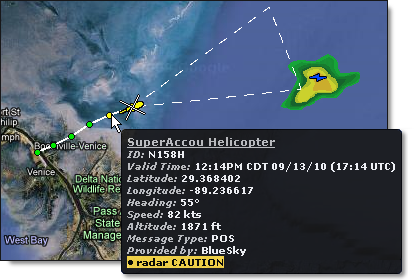
To view additional information about a helicopter, historical
path marker or base hover over the asset (shown below). Hover over the
helicopter/airplane to determine which parameters have been met. The worst case scenario*
sets the asset color.